Touch and gestures
Watch the short video guide for demonstrations of cursor targeting, navigation, and gesture edge cases.
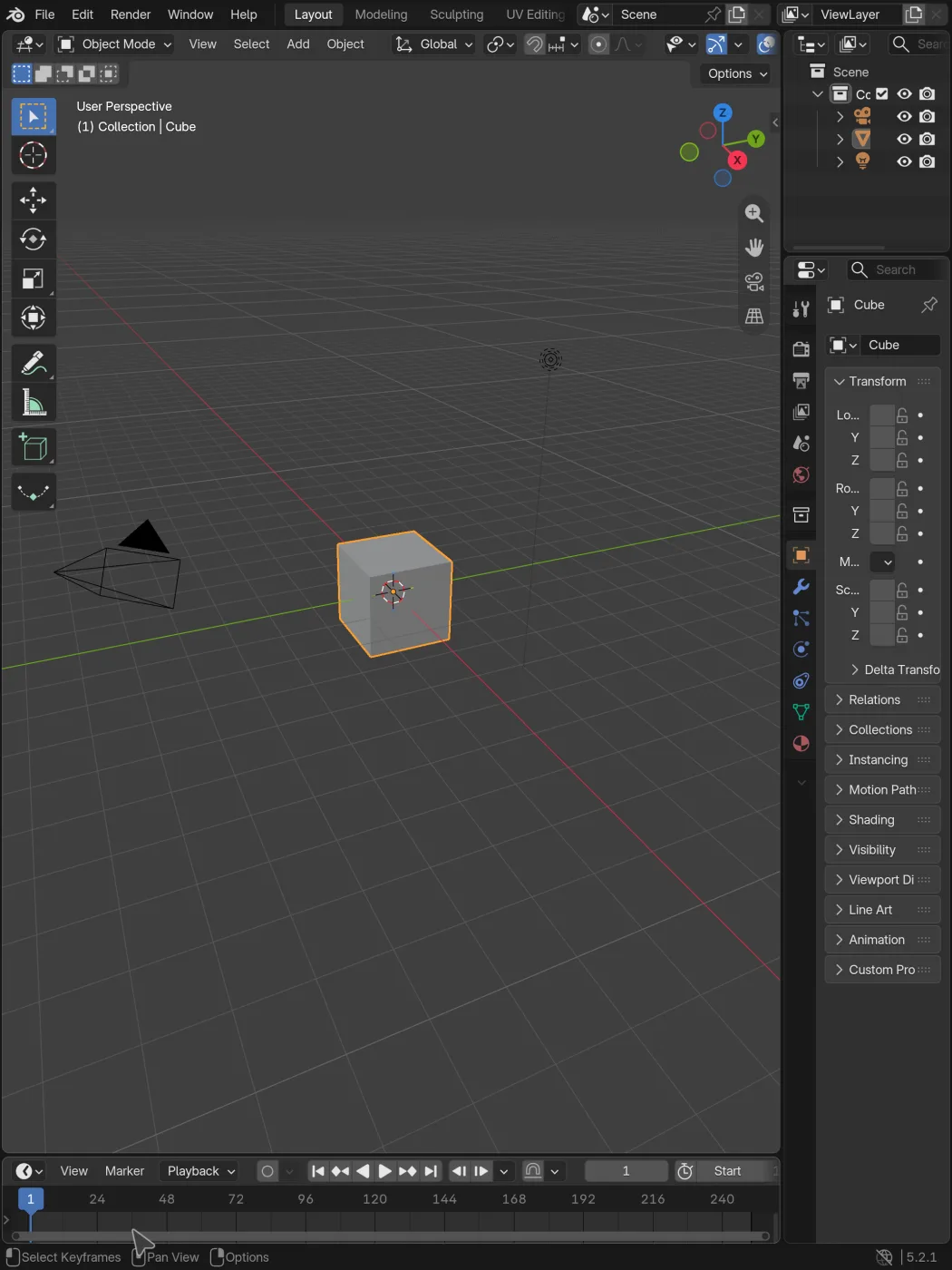
Use the screen like a trackpad. Drag one finger to move the cursor, then tap anywhere to click at the cursor. To select a button, move the cursor over it first. A tap directly on the button only works if the cursor is already there.
Pointer and clicks
Section titled “Pointer and clicks”| Gesture | What it does |
|---|---|
| One-finger drag | Moves the virtual cursor. Use it to aim at a button, object, field, or node socket. |
| One-finger tap | Left click at the cursor. |
| Tap, then hold and drag | Left-button drag. Tap once, put the same finger down again, hold briefly, then move. Use this for sliders, nodes, gizmos, and box selection. |
| One-finger triple tap | Double-click. Useful for renaming items and other controls that need a desktop double-click. |
| Two-finger hold | Right click. Hold for about 0.3 seconds, then release to open a context menu. Keep holding and move for a right-button drag. |
The cursor moves farther when you swipe quickly. Slow down for small targets.
It also wraps around the screen. Push it past the right edge and it comes back on the left; the top and bottom work the same way. That lets you keep moving during a long drag or transform without running out of screen.
Some tools hide the cursor while you’re using them. It comes back when you finish the operation.
Moving around an editor
Section titled “Moving around an editor”First, move the cursor into the editor you want to use. Gestures go to the editor under the cursor.
| Gesture | 3D Viewport | Shader Editor, Geometry Nodes, and other 2D editors |
|---|---|---|
| Two-finger drag | Orbit | Pan the canvas or scroll |
| Pinch | Zoom | Zoom |
| Three-finger drag | Pan | Use two fingers for ordinary 2D panning |
You can drag with two fingers and pinch at the same time to orbit and zoom.
In the Shader Editor, move the cursor over the nodes, then use two fingers to pan and pinch to zoom. To move a node or connect sockets, aim the cursor and use tap, then hold and drag.
The same cursor rule applies to the Outliner, timeline, and Properties. Move the cursor there before trying to scroll or zoom.
Undo, redo, and search
Section titled “Undo, redo, and search”| Gesture | Command |
|---|---|
| Two-finger tap | Undo |
| Three-finger tap | Redo |
| Four-finger tap | Search, the same as F3 |
Keep these taps quick and still. Holding two fingers starts a right click; moving them starts navigation.