Files and windows
Where your files live
Section titled “Where your files live”Look under On My iPhone or On My iPad in Files for the app’s local documents. Files kept inside the app can be lost when you delete it. Keep another copy of important projects before replacing a sideloaded build.
Open a project
Section titled “Open a project”In Files, select a .blend file and choose 3D Modeling Thingy from the share
or Open In menu. You can also use File > Open inside the app.
Add an external folder
Section titled “Add an external folder”The app needs your permission before it can use a folder outside its own storage.
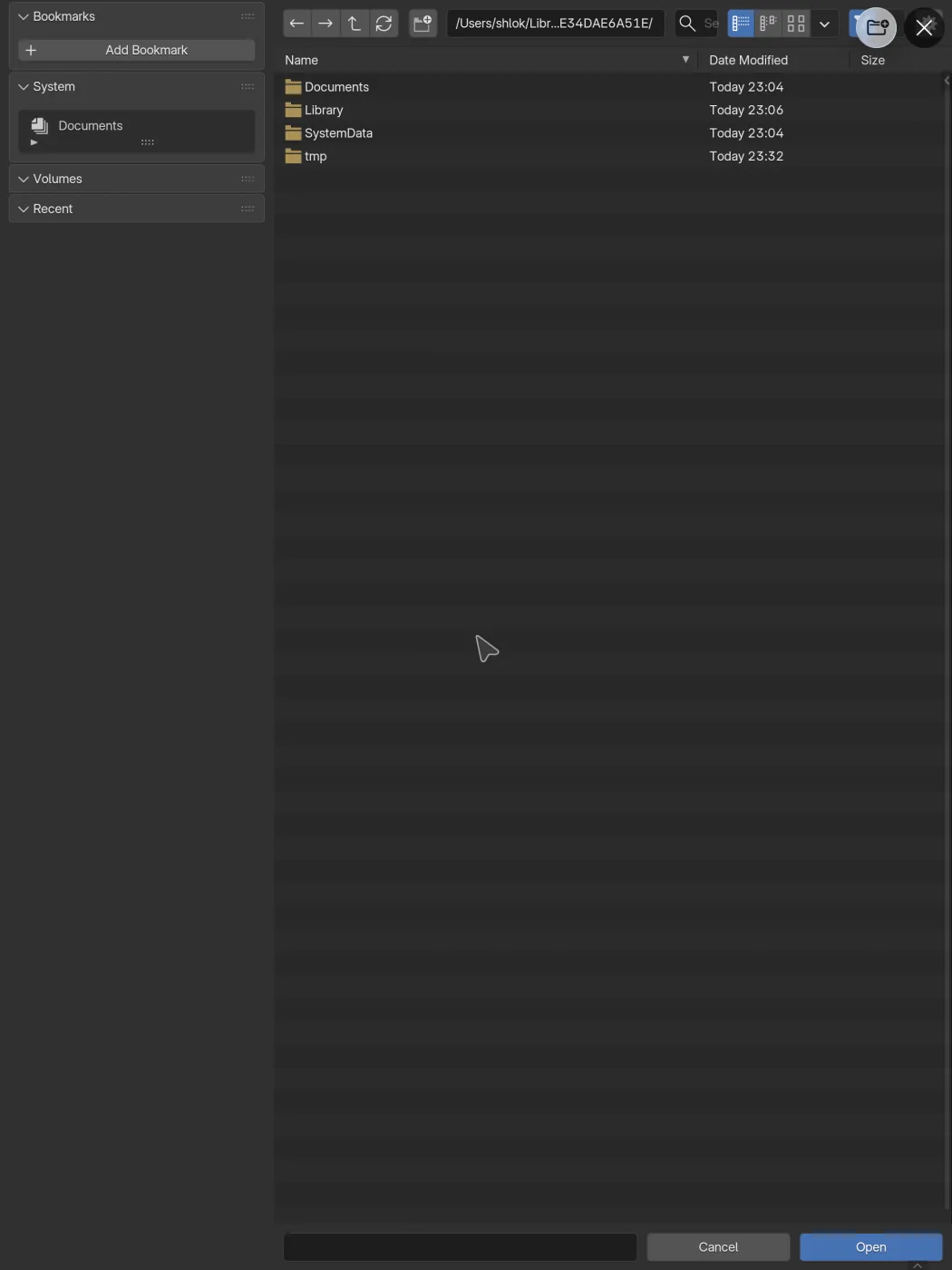
- Open the app’s file browser.
- Tap the folder-plus button beside the close button.
- Choose a folder in Files and tap Open.
- Look under System in the app’s file browser for that folder.
The app remembers the folder after you close the app. Adding it again shouldn’t create a duplicate. Cloud providers can take a moment to respond, so wait for the Files picker to finish.
Open a project from a network share
Section titled “Open a project from a network share”This walkthrough starts in the app, grants access to a Samba share through Files, and opens a project from that folder.
If a folder stops opening, add it again. This can happen after moving it, changing its permissions, or signing the app with a different account.
Close a window
Section titled “Close a window”The file browser, render display, and Preferences can open in separate
windows. Close one with the round button at the top right, or press
Command-W on a keyboard.